Last updated:
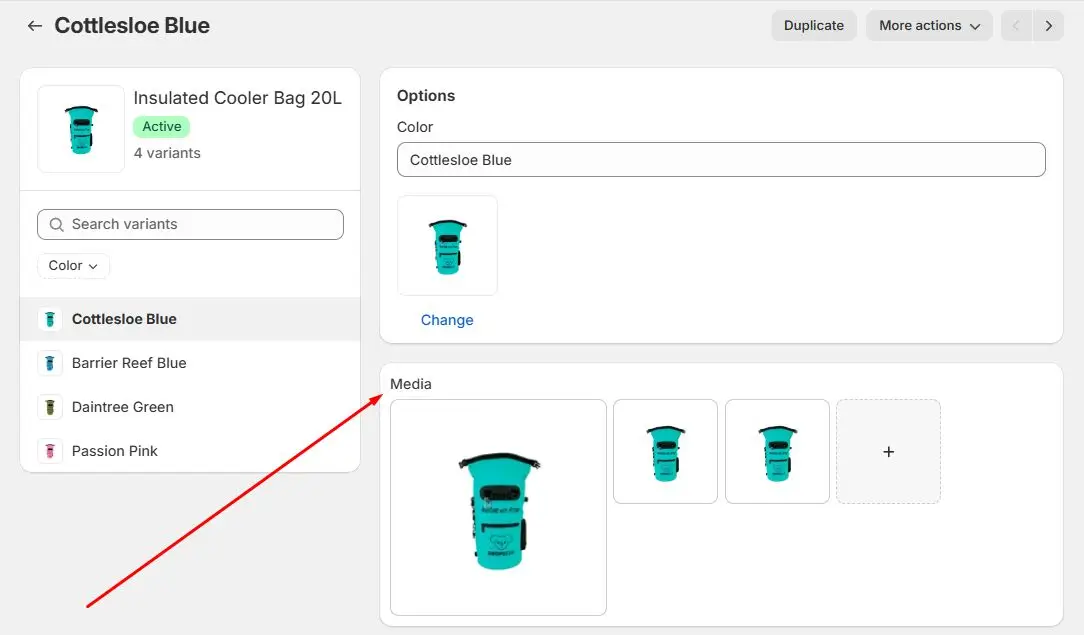
Shopify only supports one image per variant natively. For stores selling products in multiple colors, styles, or sizes, that's a serious problem. This guide walks you through the native setup, explains why it falls short, and shows you how to add multiple images per variant using a Shopify app. With Nova Multiple Variant Images, the whole setup takes under 5 minutes and requires zero coding.
If you sell products that come in multiple colors or styles, you've probably hit this wall already. A customer selects "Blue" on your product page and still sees red, green, and yellow photos mixed into the gallery. It's confusing. It kills confidence. And it costs you sales.
Here's the thing: 67% of online shoppers consider product image quality more important than descriptions, reviews, or any other content on the page when deciding whether to buy. So showing the wrong images for the wrong variant isn't a minor UX issue. It's a direct hit to your conversion rate.
Shopify variant images are one of the most asked-about topics in the Shopify community, and for good reason. The native functionality just doesn't go far enough. This guide covers everything: what Shopify variant images are, how the native setup works, and how to properly add multiple images per variant so your product pages actually work the way they should.
What Are Shopify Variant Images?
Shopify variant images are product photos assigned to specific product variants. When a customer selects a variant on your product page, the assigned image appears as the preview for that variant, keeping the gallery relevant to what they've chosen.
The goal is straightforward: a customer selecting "Red" should only see red product photos. Selecting "Blue" should instantly update the gallery to show blue photos. That's what variant images are designed to do.
The problem is that Shopify's native implementation only goes halfway. Out of the box, you can assign one image per variant. That single image gets highlighted when a customer selects that variant, but the rest of your full product gallery stays visible. For stores with visually distinct variants, that's not nearly enough.
Shopify variant image (Native Method)
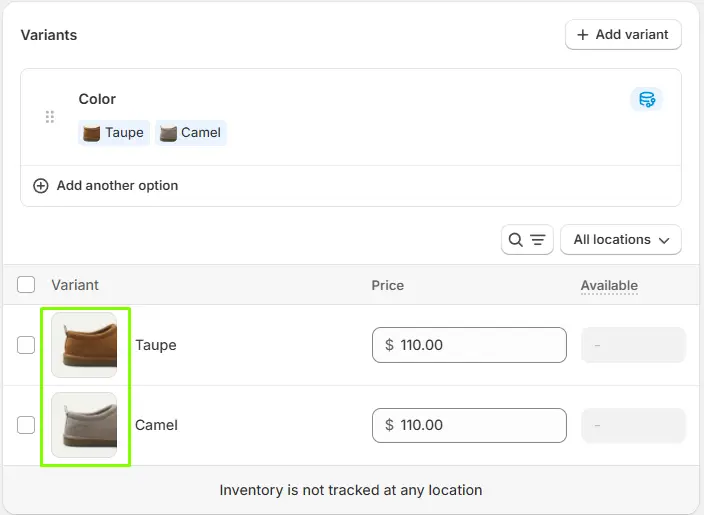
If you just need one image per variant and don't require a filtered gallery, here's how to do it natively. This works in all Shopify plans.
Step 1: Go to Products in your Shopify admin.
Step 2: Open the product you want to edit.
Step 3: Scroll down to the Variants section.
Step 4: Click the image icon next to the variant you want to assign an image to.
Step 5: Select an existing product image or click Add image to upload a new one.
Step 6: Click Done, then Save.
Repeat this for every variant on the product.
That's it for the native method. It works fine for simple stores. But remember, you can only assign one image per variant this way, and the full gallery stays visible no matter which variant a customer picks. For a full walkthrough of the native approach, see this guide on adding images to product variants in Shopify.
How to Add Multiple Images Per Variant in Shopify (The Right Way)
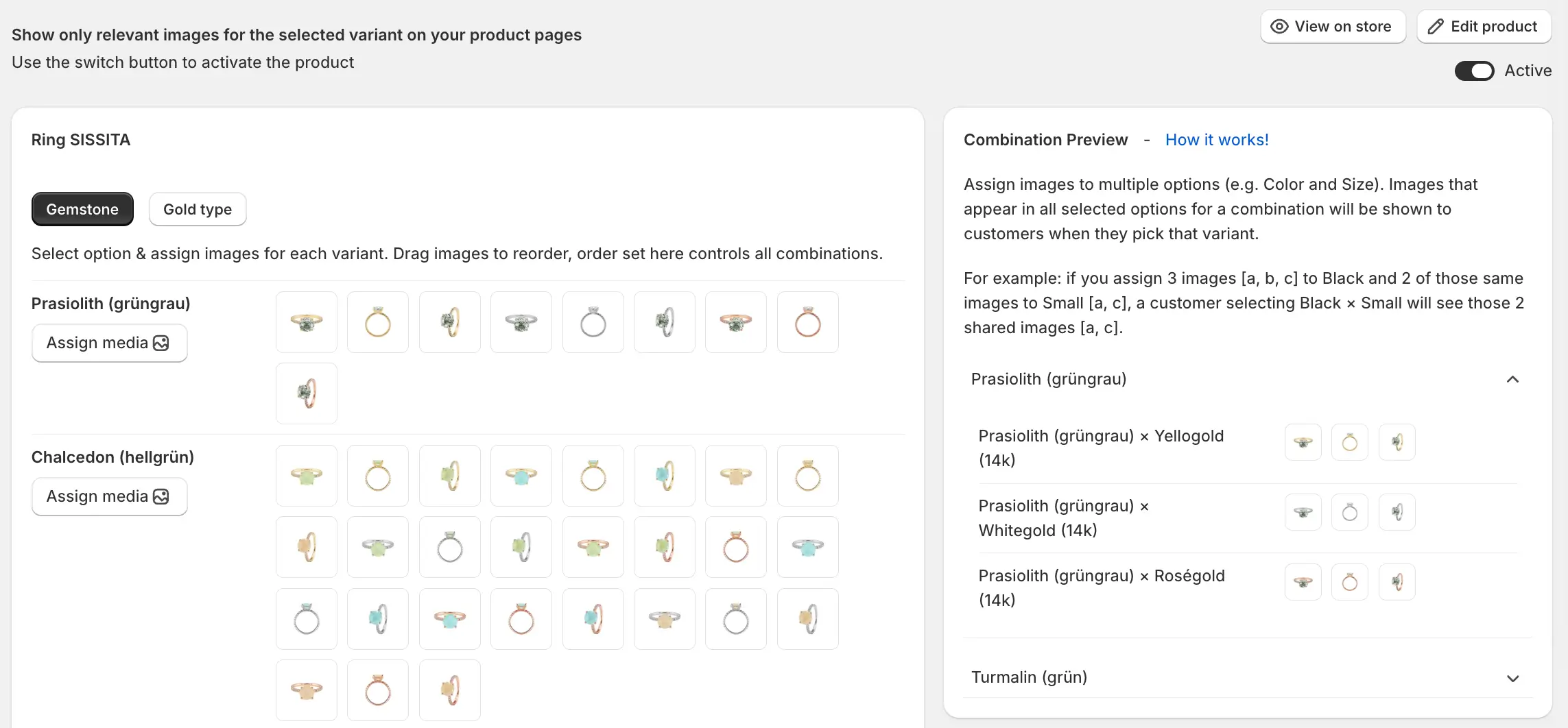
To show multiple images per variant with automatic gallery filtering, you need a Shopify variant image app. There's no workaround for this in standard Shopify. An app is required.
A variant image app lets you assign as many photos, videos, and 3D models as you want to each variant. When a customer selects a variant, the gallery instantly filters to show only that variant's media. No manual scrolling. No confusion. Just the right images at the right time.
Setup with Nova Multiple Variant Images takes under 5 minutes. Here's exactly how it works.
Step 1: Install Nova. Find Nova Multiple Variant Images in the Shopify App Store. There's a free plan available, no payment required to try it on one product.
Step 2: Open a product in Nova's interface. From your Shopify admin, go to the product you want to configure and open it inside Nova.
Step 3: Assign images to each variant. Select a variant, for example "Blue," and assign all the images that belong to it: front shot, back shot, lifestyle photo, detail close-up. Repeat for each variant.
Step 4: Use bulk assign for shared images. Got a size chart, a packaging shot, or a lifestyle image that applies to all variants? Use the bulk assign feature to add it to every variant in one click instead of repeating the process manually.
Step 5: Save and preview. Save your changes and preview the product page. When a customer selects a variant, the gallery instantly updates. Only that variant's images show. Everything else stays hidden.
The whole process is visual and done inside the Shopify admin. No code edits. No theme modifications. If you want to understand how the automatic switching works behind the scenes, this post on the variant image automator explains the mechanics in detail.
How Shopify Variant Images Work on Different Themes & Page builders
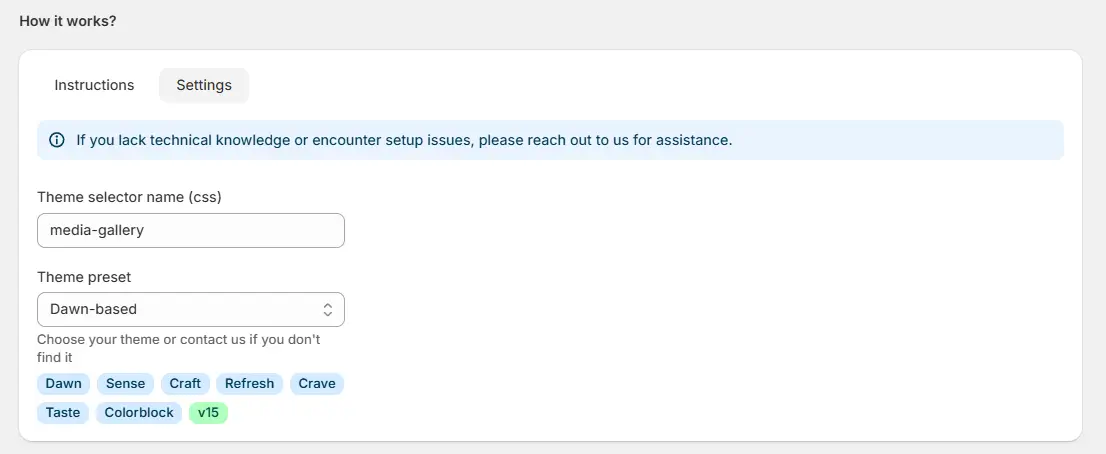
Shopify Dawn Theme
Dawn supports variant image switching natively for one image per variant. For multiple images per variant, you'll need an app. Nova multiple variant images works seamlessly with Dawn without any theme code changes.
Shopify Horizon Theme
Horizon, Shopify's newest flagship theme, has similar limitations. It supports one image per variant out of the box. A variant image app like Nova extends this to support multiple images and automatic gallery filtering.
Shopify Themeforest Themes
Nova is built to be compatible with all Shopify themes, including custom-built ones. The app handles compatibility automatically. For example Themeforest Themes like Avone, Kalles or marketplace like Lumin Theme.
Shopify Page builders
Nova multiple variant images works with all major Shopify page builders including Instant.so, PageFly, GemPages, EComposer, Shogun. Variant image filtering works automatically regardless of how your product page is built.
Why Getting Variant Images Right Directly Affects Your Revenue
Variant images aren't just a cosmetic fix. They have a measurable impact on two of the most important metrics for any Shopify store: conversion rate and return rate.
Getting your variant images right is one of the highest-ROI changes you can make to a product page, and the data backs that up.
On the conversion side: research found that offering multiple product views using a slideshow feature increased conversion rates by 65%, and listings using larger photos doubled their conversion rates. High-resolution product images deliver a 33% higher conversion rate compared to products with low-quality or insufficient visuals. When a customer can see exactly what they're buying in the variant they've selected, from multiple angles, they're far more likely to add to cart.
On the return side: online return rates hit 16.9% of total retail sales in 2024, representing roughly $890 billion in returned merchandise in the US alone. A significant chunk of those returns trace back to mismatched expectations between what customers saw on the product page and what they received. 71% of consumers have returned a product because the actual item didn't match the description or images.
22% of products are returned specifically because they appear different in person than they did in the product photos. When a customer selects "Forest Green" and sees a clean filtered gallery of only forest green images from five angles, that surprise gets eliminated.
Fewer surprises means fewer returns. More clarity means more conversions. It really is that direct.
Best Practices for Variant Images Shopify
Setting up variant images is the first step. Setting them up well is what actually moves the needle. Here are the practices that make the biggest difference.
Be consistent across variants. If your Blue variant has 5 photos, give Red and Green 5 photos too. Inconsistency makes your store look unpolished and signals to customers that some variants got less attention.
Cover multiple angles for every variant. At minimum, shoot front, back, side, and a lifestyle or in-context photo for each variant. The more clearly a customer can visualize what they're buying, the more confident they'll be to purchase.
Don't skip video and 3D models. Product pages with videos can raise conversions by up to 80%, and 83% of consumers say a product video has convinced them to buy. Nova supports video per variant, use it. This is especially valuable for high-consideration purchases like furniture, footwear, or apparel.
Optimize for mobile first. Mobile commerce accounts for 62% of all ecommerce traffic, and 83% of mobile shoppers say image quality is more important than product descriptions when shopping on a phone. Always preview your variant image gallery on a phone before publishing. A gallery that looks great on desktop can be a mess on a 6-inch screen.
Name and alt-tag your images correctly. Use descriptive file names like "blue-linen-shirt-front.jpg" and write alt text that includes the variant name. It helps with accessibility and gives Google more context for image search indexing.
The Bottom Line
If you're selling products where the visual difference between variants matters, this is one of the fastest improvements you can make to your store. And it directly shows up in your conversion rate and return rate.
Install Nova Multiple variant images on the Shopify App Store. The free plan covers one product with no plan required, so you can see exactly how it works on your store before committing.
FAQ
How many variants can you have on Shopify?
Shopify allows up to 2048 variants per product, with a maximum of 3 options (e.g. Color, Size, Material).
Can Shopify show multiple images per variant natively?
No. Shopify's native variant image feature only supports one image per variant. When a customer selects a variant, that single assigned image is highlighted as the preview, but the rest of your full product gallery remains visible. There's no automatic gallery filtering. To show a filtered set of multiple images per variant, you need a third-party variant image app.
How do I add multiple images to a Shopify product variant?
You can't do this natively in Shopify. You need a shopify variant image app like Nova Multiple Variant Images. Once installed, open a product in app interface, select a variant, and assign as many images, videos, or 3D models as you need. When a customer selects that variant on your product page, the gallery automatically filters to show only those images. Setup takes under 5 minutes and requires no code changes.
Does Nova work with Shopify Dawn and Horizon themes?
Yes. Nova Multiple Variant Images works with both Dawn and Horizon, as well as all other Shopify themes including custom-built ones. No theme code changes are required. It also works with all major page builders including PageFly, GemPages, EComposer, and Instant.
How many images can I assign to each variant with Nova mvi?
Nova supports unlimited images, videos, and 3D models per variant. There's no cap on the number of media files you can assign to a single variant. You can also use the bulk assign feature to add shared images, like a size chart or packaging photo, to all variants at once in a single click.
How do I hide variant images until a variant is selected?
This requires a shopify variant image app. Once configured, images assigned to specific variants stay hidden until the customer selects that variant, keeping the gallery clean and relevant on page load.
Will adding a shopify variant image app slow down my store?
A well-built app shouldn't slow your store down at all. Nova multiple variant images is built for zero impact on page speed and works with all Shopify themes and page builders. Page speed matters for both SEO and conversions, so it's worth checking that any app you install has been built with performance in mind. Nova's App Store listing confirms this as a core part of how it's engineered.
How Variant Image Automator Shopify App works?
A variant image automator works in three steps: you install the app, assign multiple images to each variant inside the app's interface, and from that point the app automatically filters the gallery whenever a customer selects a variant.