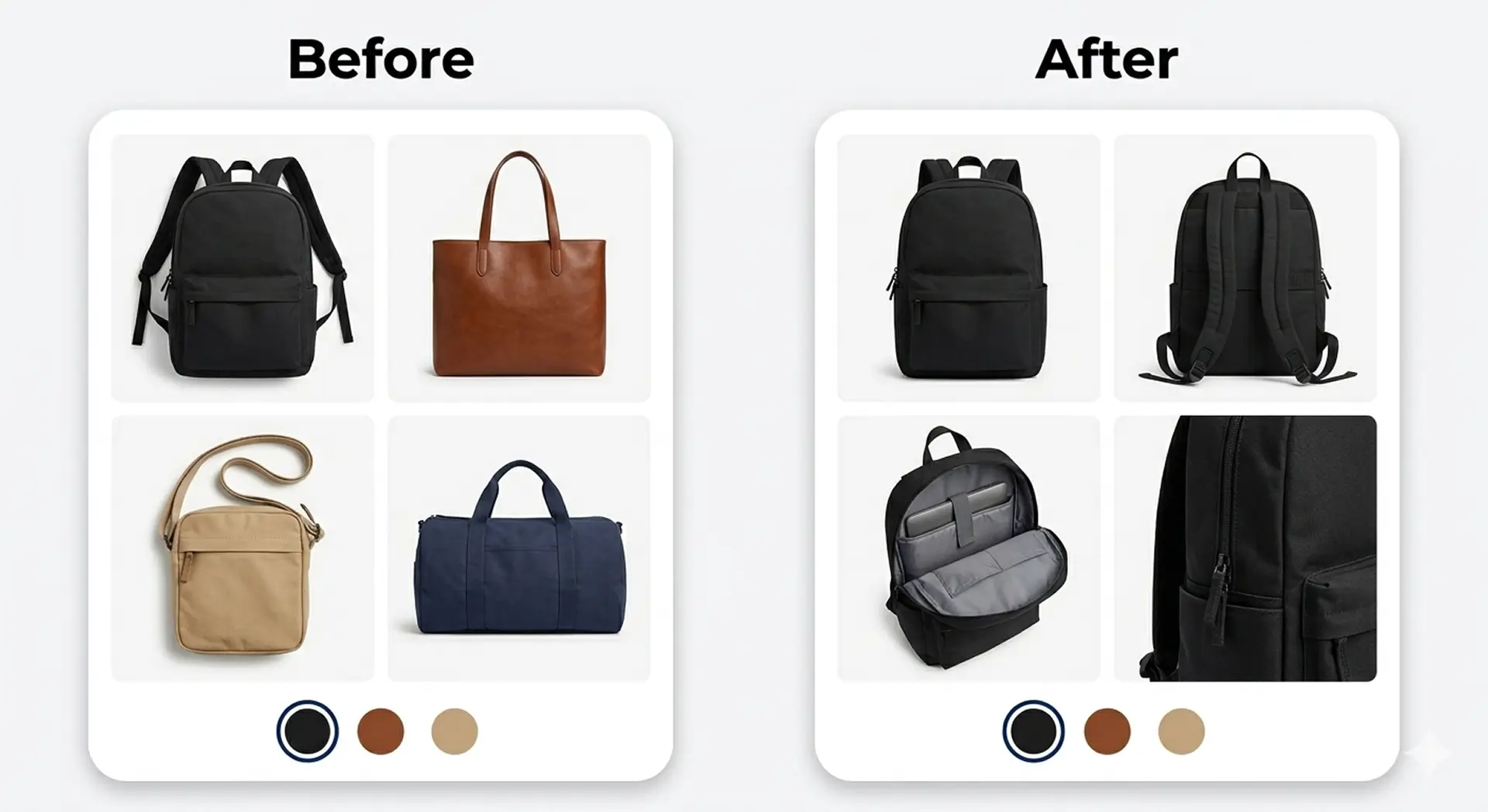
Shopify lets you add one image per product variant natively. This guide covers the exact steps to do it on desktop and mobile, including a bulk method for larger catalogs. But one image rarely converts well. Most products need multiple angles to build buyer confidence. You'll also learn why that limit exists, how it affects your sales, and how to fix it on any Shopify plan without touching Shopify Plus.
You've set up your product variants. You've got the colors, the sizes, the options. But when a customer selects "Midnight Black," they see one image and move on.
That's the problem. Research shows that 67% of consumers consider the quality of product images the most important factor in their purchase decision, ranking it above product descriptions and even reviews. If your product needs three angles to tell its story and your customer only sees one, you're leaving money on the table.
This guide covers everything you need to know about adding images to product variants in Shopify. The native steps, the real limitations, how to work around them, and the best practices that keep your product pages fast, clean, and converting.
What Are Shopify Product Variant Images?
A Shopify product variant image is the specific photo that appears when a customer selects a particular product option, such as a color, size, or material. When a customer picks "Forest Green," the product image updates to show the green version. That automatic switch is what a variant image does.
Getting this right matters more than most merchants realize. Customers can't touch or try your products. They rely entirely on what they see on the screen. When the image matches the option they selected, it builds trust instantly. When it doesn't, they hesitate. And hesitation leads to bouncing.
Every variant you sell deserves its own visual. It's one of the simplest improvements you can make to a product page, and one of the highest-leverage.
How to Add Images to Product Variants in Shopify
Here's the step-by-step process straight from the Shopify Help Center. No apps needed for the native method.
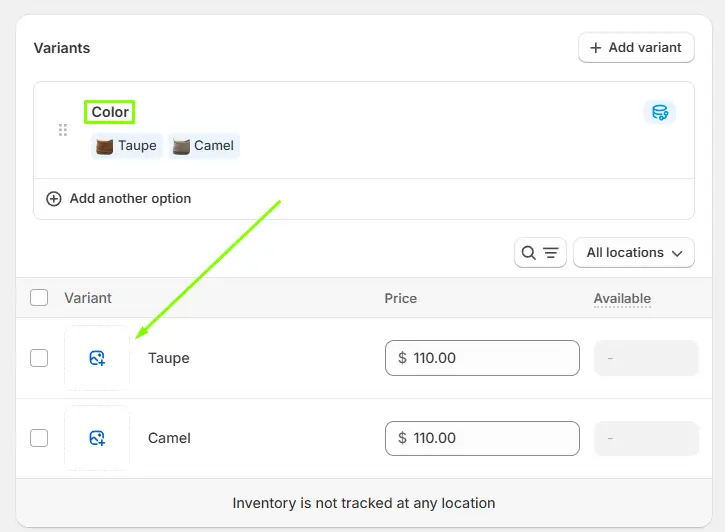
On Desktop:
From your Shopify admin, go to Products
Click the product you want to edit
Scroll to the Variants section
Click the image icon next to the variant
Select an existing product image or click Add image to upload a new one
Click Done, then Save
On Mobile (iOS and Android):
Open the Shopify app and tap your store icon
Go to Products and tap the product you want to edit
In the Variants section, tap the variant you want to update
Tap the + icon to select or upload an image
Tap Save
Need to update images across many variants at once? Use the bulk method.
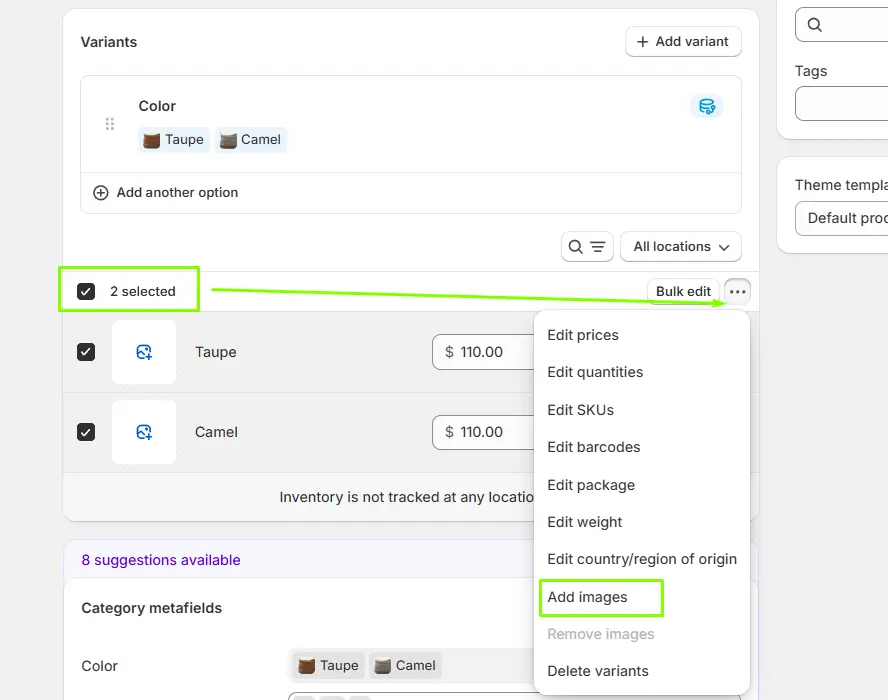
In the Variants section, check the boxes next to multiple variants, click the three-dot menu (...), and select Add images or Edit images. You can assign images to all selected variants in one go. It's a big time-saver for stores with large catalogs.
Why Does Shopify Only Allow One Image Per Variant?
Shopify's native variant system supports only one image per variant. It doesn't support videos, 3D models, or a gallery of multiple angles tied to a specific option. That's a hard platform limit.
Shopify's own documentation acknowledges this: each variant supports only one assigned image. Their suggested workaround is to upload all related images to the product gallery, arrange them in order, and have customers scroll to see the rest.
In theory, that works. In practice, customers don't scroll. They select a color, look at one photo, and make a snap decision. If that one photo doesn't answer all their visual questions, you've lost the sale.
The only native solution Shopify offers for multiple images per variant is the Combined Listings app. But it's exclusively available on Shopify Plus and enterprise plans, which start at around $2,300 per month. For most independent merchants, that's not a realistic option just to fix a product page problem.
Does One Image Per Variant Actually Hurt Conversions?
Yes, and the data backs it up.
Research into product page performance found that offering multiple views through a gallery slideshow increased conversion rates by 65%. That's not a marginal improvement. It's a structural one.
High-resolution images showing a product clearly can lift conversion rates by up to 33% compared to lower-quality or limited visuals. And roughly half of all online shoppers prefer to look at product photos rather than read text descriptions.
Think about what happens when someone's shopping for a bag. They select "Tan." They want to see the front, the strap detail, the interior, and maybe a lifestyle shot. If they only see one cropped studio photo, they're not confident. They don't add to cart. The average Shopify store converts at around 1.4%, while the top 10% of stores hit 4.7%. The gap between those two groups often comes down to small but compounding UX details, and variant images are one of the easiest to fix.
Returns are also a factor. When customers can't fully visualize what they're buying, they're more likely to return it when it arrives. Better images per variant reduce that friction before the purchase even happens. You can see how leading Shopify brands approach this in the Americanflat case study, where product page clarity plays a direct role in customer confidence at scale.
How to Add Multiple Images Per Variant in Shopify (Without Shopify Plus)
This is where Nova Multiple Variant Images comes in.
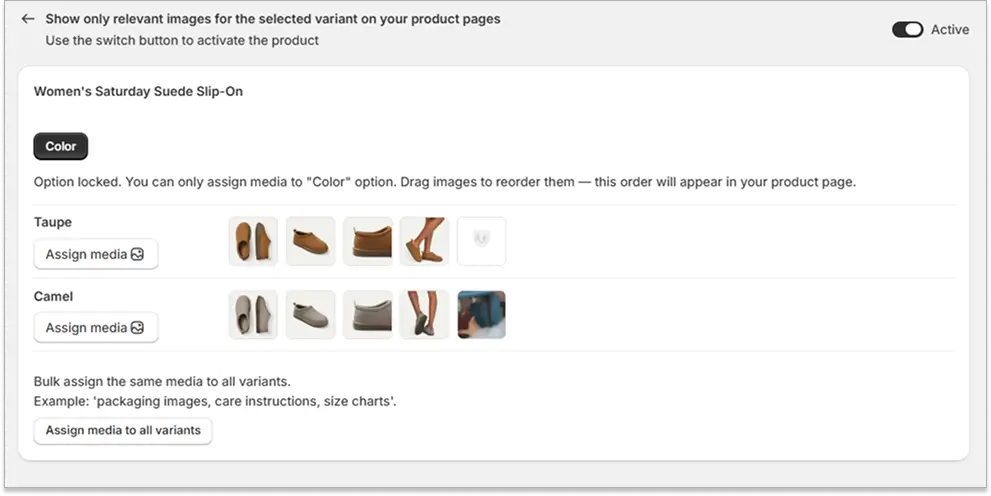
Nova is a Shopify app built specifically to solve this problem. It lets you assign multiple images, videos, and 3D models to each product variant, so when a customer selects a color or style, the gallery automatically updates to show only that variant's media. No scrolling. No guessing. No Shopify Plus required.
What Nova miv does:
Assigns unlimited images, videos, and 3D models per variant
Automatically filters the gallery when a variant is selected
Works on any Shopify plan
Requires no coding or theme editing
Here's how it compares to the other options:
Shopify Native | Shopify Plus (Combined Listings) | Nova | |
|---|---|---|---|
Images per variant | 1 | Multiple | Multiple |
Videos and 3D models | No | No | Yes |
Auto gallery filtering | No | Yes | Yes |
Available on all plans | Yes | No | Yes |
Monthly cost | Included | $2,300+ | Fraction of the cost |
If you're thinking about the image strategy side of this, check out the AI-generated ecommerce product images page too. It's relevant if you need to create variant-ready visuals at scale without a full photoshoot.
→ Start a free trial of Nova Multiple Variant Images
Best Practices for Shopify Variant Images
Getting images assigned is step one. Making them work well is step two. Here's what actually matters.
Use the right dimensions. Shopify recommends keeping images at 2048 x 2048 pixels for high-quality display, and image file sizes under 300KB for optimal page speed. Compress your images before uploading with a tool like TinyPNG or Squoosh. Large files slow your page down, and a slow page kills conversions.
Name your files descriptively. Instead of uploading "IMG_4821.jpg," rename it something like "black-leather-tote-front.jpg." Descriptive filenames help search engines understand your images, which improves their visibility in Google Image Search and drives more organic traffic to your store.
Always add alt text. Alt text serves two purposes: it helps visually impaired shoppers using screen readers, and it tells search engines what the image shows. Good alt text for a variant image looks like: "Tan leather crossbody bag, front view." It's simple, descriptive, and keyword-relevant.
Test on mobile. More than 70% of Shopify orders come from mobile devices. Always preview your variant images on a phone after uploading. Check that images resize correctly, load quickly, and don't appear stretched or pixelated on smaller screens.
Keep it consistent. Use the same dimensions, aspect ratios, and background styles across all variants. A mix of white-background studio shots and informal phone photos on the same product page looks unprofessional and reduces trust. Consistency signals quality. For more ideas on how to build a high-performing product page, browse the Shopify features and optimization work we cover.
Troubleshooting: Why Aren't My Variant Images Switching?
If your variant images aren't updating when a customer selects a different option, there are a few likely causes.
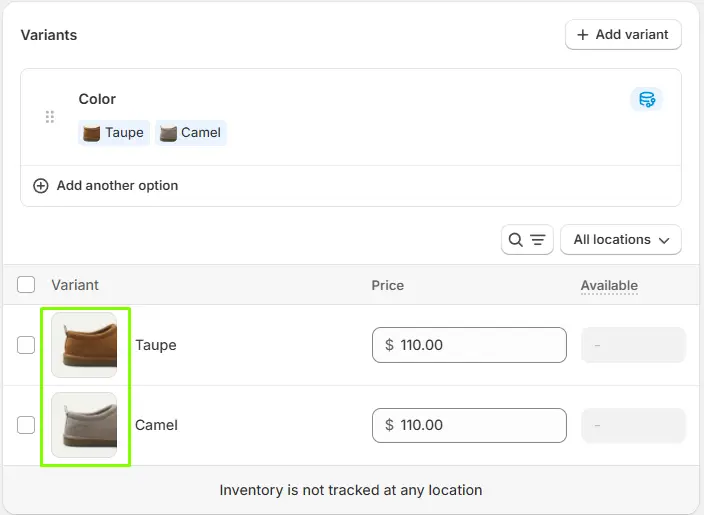
The most common fix: the image isn't properly assigned. Go back to Products, find the variant, and confirm the image icon shows the correct photo next to it. It's easy to forget to hit Save after assigning.
If images are assigned but still not switching, your theme may not support dynamic variant image switching. Most Shopify 2.0 themes support this natively, but older or heavily customized themes may not update the gallery automatically when a variant changes. Check your theme documentation, or test it in a different theme to confirm.
Browser cache can also cause this. If you've recently made changes and the product page still looks outdated, clear your browser cache and reload. It's a quick check that often solves the problem.
If none of those fix it, the cleanest solution is an app. Using an app like Nova Multiple Variant Images handles image switching automatically, regardless of your theme. It works consistently across all Shopify plans and themes, so you don't need to chase down a developer or audit your theme code.
The Bottom Line
Adding images to product variants in Shopify is straightforward with the native tools. But the one-image limit is a real barrier for merchants who want their product pages to actually convert.
Here's what to take away: assign a specific image to every variant you sell. Use descriptive filenames and alt text. Keep your files compressed and your dimensions consistent. Test everything on mobile. And if one image per variant isn't enough for your products, you don't need Shopify Plus to fix it.
Nova Multiple Variant Images handles the whole thing on any plan. You can assign unlimited images, videos, and 3D models per variant, and the gallery filters automatically when a customer makes a selection. No workarounds. No coding.
Start your free trial at apps.shopify.com/nova-multiple-variant-images and see the difference it makes on your product pages.
FAQ
What's the difference between a product image and a variant image in Shopify?
A product image is any photo uploaded to a product listing. It appears in the general media gallery. A variant image is a specific photo assigned to one option, such as a particular color or size. When a customer selects that variant, the assigned image appears as the preview. Each variant supports only one assigned image natively in Shopify.
Can I add videos or 3D models to Shopify product variants?
Not natively. Shopify's variant image feature supports photos only. Videos and 3D models can be added to the general product gallery, but they can't be assigned to a specific variant. If you want videos or 3D models to appear automatically when a customer selects a variant, you'll need an app like Nova Multiple Variant Images, which supports all three media types per variant.
How do I bulk add images to multiple variants at once?
In your Shopify admin, go to Products and open the product you want to edit. In the Variants section, check the boxes next to the variants you want to update. Click the three-dot menu (...) at the top of the section and choose Add images or Edit images. From there, you can assign images to all selected variants in one action and hit Save. This is the fastest native method for stores with large catalogs.
Do variant images affect Shopify SEO?
Indirectly, yes. Descriptive image filenames and alt text help search engines index your product images correctly, which can improve visibility in Google Image Search and drive additional organic traffic. Well-optimized variant images also improve the overall user experience, which reduces bounce rates and increases time on page, both of which are positive signals for search rankings.
What's the best app for showing multiple images per variant on Shopify?
Nova Multiple Variant Images is built specifically for this. It lets you assign unlimited images, videos, and 3D models to each product variant and automatically filters the gallery when a customer selects an option. It works on all Shopify plans, requires no coding, and includes a free trial so you can test it on your store before committing.