Last updated:
TL;DR: A variant image automator Shopify app shows customers only the right images when they select a variant. But not all apps work the same way. SA Variant Image Automator uses auto-grouping based on image order. Nova Multiple Variant Images uses manual assignment. That single difference determines which app fits your store, where each one breaks, and what you can and can't do with shared media like product videos.
If you sell products in multiple colors, styles, or sizes, you already know this problem.
A customer lands on your product page and selects "Blue." But instead of seeing blue product photos, they're staring at a gallery full of red, green, and yellow images all mixed together. They scroll, get confused, and either guess or leave.
That confusion is costing you. According to Salsify's 2025 Consumer Research Report, 77% of shoppers say high-quality, relevant images and videos are important to their purchase decisions. When the wrong images show up for the wrong variant, you're failing that test before the customer even gets to checkout.
That's exactly the problem a variant image automator Shopify app is built to fix. But here's what most posts don't tell you: there are two completely different ways these apps solve this problem. And choosing the wrong approach for your store creates new problems you won't discover until you're already live.
This post covers what SA Variant Image Automator and Nova Multiple Variant Images each do, how each one works under the hood, where each one excels, and where each one breaks.
Why Shopify's Native Setup Isn't Enough
Shopify has made huge strides for merchants managing complex catalogs. It now supports up to 2,048 variants per product, which is a massive upgrade from the old 100-variant cap. But the image experience hasn't kept up.
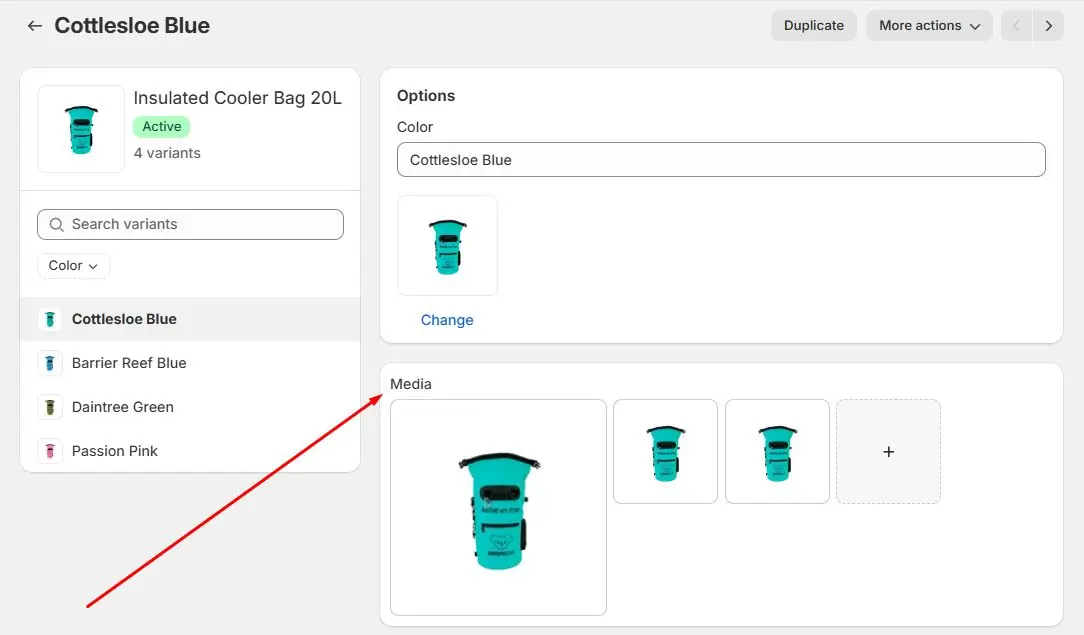
Here's what you're working with out of the box. According to Shopify's own documentation, each variant supports only one assigned image. Product variants don't support other media types like 3D models or videos, and Shopify's native behavior is to display all product images in a single gallery regardless of which variant is selected.
That creates three real problems for stores with visually distinct variants:
You can't assign multiple photos to a single variant. If your blue version needs a front shot, a back shot, a lifestyle photo, and a detail close-up, Shopify natively can't do that.
All product images show up in one gallery at once. A customer selecting "Blue" still sees red, green, and every other colorway mixed in.
Shoppers have to scroll through everything manually. On mobile, where 72% of all ecommerce sales now come from, that's a frustrating experience that kills conversions.
For stores with simple products, this is fine. For stores selling apparel, footwear, furniture, accessories, or anything where the visual difference between variants actually matters to the buying decision, it's a serious problem.
The Two Ways Variant Image Apps Solve This Problem
Before comparing SA Variant Image Automator and Nova Multiple Variant Images directly, you need to understand that these two apps take fundamentally different approaches to the same problem.
One uses auto-grouping. One uses manual assignment. They sound similar. They are not.
How SA Variant Image Automator Works: Auto-Grouping
SA Variant Image Automator by StarApps solves the variant image problem through auto-grouping. Instead of asking you to manually tag or assign images inside the app, SA Variant Image Automator reads the order your images appear in the Shopify product media section and groups them automatically into variant sets.
Here is exactly how it works in practice.
You go into your Shopify product editor and arrange all your product images in order by variant. All the blue images together first, then all the red images together, then all the green images together. SA Variant Image Automator detects where one group ends and the next begins based on that order. When a customer selects "Blue," the app shows the first group. When they select "Red," it shows the second group, and so on.
That's the entire setup. No manual tagging inside the app. No assigning images to specific variants. You organise the images in Shopify, and SA Variant Image Automator handles the rest.
This is genuinely useful for the right store. SA Variant Image Automator has been live since 2017, holds a 4.8-star rating across 656 reviews, is Built for Shopify certified, and is installed on over 4,000 active Shopify stores. The track record is real.
Where SA Variant Image Automator works well:
The auto-grouping approach is fast to set up and works reliably when your products have a single variant option (like color only), your image order is stable and well organised, and you never need to assign the same media to multiple variants.
Where SA Variant Image Automator breaks:
Auto-grouping has a structural ceiling. There are three specific scenarios where it stops working correctly.
First, if you reorder your product images for any reason, the groupings break. SA Variant Image Automator is reading position, not intent. Move one image and the app no longer knows where one variant group ends and another begins. Merchants have reported image mixing after Shopify updates that caused colour pictures to get confused and require manual re-sorting.
Second, auto-grouping fails with combined variant options. If your product has both a colour option and a style option, for example "Blue Matte" and "Blue Gloss" as separate combinations, SA Variant Image Automator cannot correctly assign images to each specific combination. The grouping logic works on a single option dimension only.
Third, and this is the most common point merchants don't discover until after setup: you cannot assign the same media to multiple variants with SA Variant Image Automator.
Here's the real scenario. A merchant selling a product in five colourways had a single product demo video that applied to every variant. The video shows how the product works, not what colour it is. With SA Variant Image Automator's auto-grouping, that video had to sit in one image group. It could only appear for one variant. There was no way to assign that same video to all five colourways simultaneously. The merchant either had to upload five copies of the same video (one per group) or leave it out of the variant gallery entirely.
That's not a bug. It's a direct consequence of how auto-grouping works. The app groups by position, so shared media has no clean home.
How Nova Multiple Variant Images Works: Manual Assignment
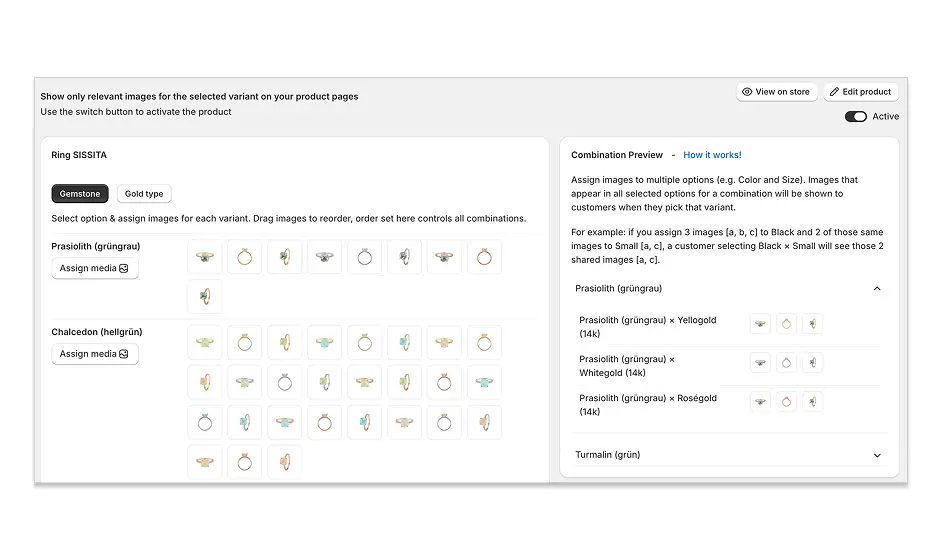
Nova Multiple Variant Images takes the opposite approach. Instead of reading image order, Nova Multiple Variant Images asks you to explicitly assign images, videos, and 3D models to each variant inside the app's interface.
Here is exactly how it works in practice.
You open Nova Multiple Variant Images inside your Shopify admin. You select a variant, for example "Blue," and assign every piece of media that belongs to it: front shot, back shot, lifestyle photo, detail close-up, and any videos or 3D models specific to that colour. You repeat this for each variant. The app stores those assignments and uses them to filter the gallery whenever a customer makes a selection.
The key difference is that Nova Multiple Variant Images lets you assign the same media to multiple variants simultaneously. If you have a product demo video that applies to every colour, you assign it to all five variants in one step using bulk assign. Every customer sees that video regardless of which colour they pick, because you told Nova Multiple Variant Images explicitly that it belongs everywhere.
Nova Multiple Variant Images also includes drag and reorder inside the app. You control the exact sequence images appear in for each variant independently. Reordering your Shopify product gallery for any other reason doesn't affect your Nova Multiple Variant Images assignments because the assignments live inside the app, not in Shopify's image order.
Nova Multiple Variant Images holds 5.0-star rating, is Built for Shopify certified, and works across the product page, quick buy modal, collection page, and homepage featured product widgets. It's the only variant image app in this category that covers all four locations.
Where Nova Multiple Variant Images works well:
Manual assignment is the right approach when your products have multiple variant option combinations like colour and style together, when you need to share a video or 3D model across multiple variants, when you have a large catalog and need bulk assign to save setup time, when your gallery order changes regularly, and when you need variant images to appear on collection pages or in quick buy modals, not just the product page.
The honest trade-off with Nova Multiple Variant Images:
Manual assignment takes more initial setup time than auto-grouping. For a store with a large catalog, you're explicitly assigning media to each variant rather than just arranging images in Shopify. Bulk assign closes most of this gap: you can assign the same images or videos to all variants across multiple products in one click. But it's worth knowing upfront.
Nova Multiple Variant Images also does not include colour swatches. That's a deliberate decision. Most modern Shopify themes include native swatch support. Keeping swatches out means Nova Multiple Variant Images stays fast and focused on what it does best.
Auto-Grouping vs Manual Assignment: The Direct Comparison
Auto-grouping and manual assignment both solve the core problem of showing the right images per variant. The difference is in what happens at the edges.
Auto-grouping is faster to set up and requires no tagging inside an app. But it relies entirely on image order as its source of truth. The moment that order changes, or the moment you need shared media, or the moment you have combined variant options, it breaks.
Manual assignment takes more setup time upfront. But what you assign stays assigned regardless of what happens to your product gallery. Shared media works. Combined variant options work. Collection pages work. Quick buy modals work.
The merchant case above illustrates this clearly. A product demo video that applies to all variants is a completely normal thing to have. With SA Variant Image Automator, it's not possible without uploading duplicate copies. With Nova Multiple Variant Images, it's one bulk assign action.
Does It Actually Help Conversions and Returns?
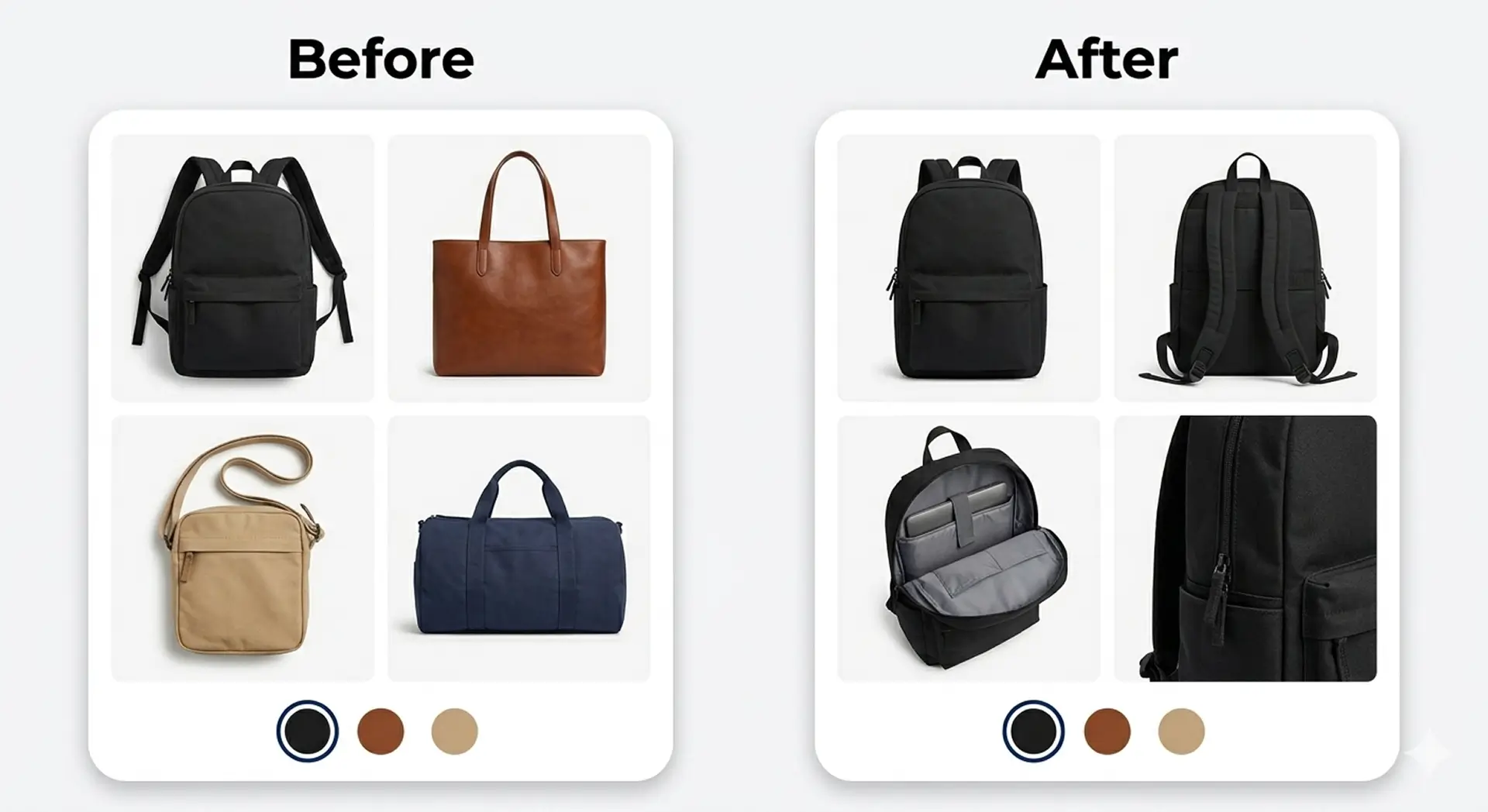
Yes. Showing the right images for the selected variant directly reduces returns and lifts conversion rates, and the data backs this up clearly.
On returns: 22% of products are returned because they look different from what the customer expected based on the product photos. When a shopper buys "Blue" but saw a gallery full of mixed colors, they're at higher risk of being disappointed when the product arrives. Filtered variant images eliminate that mismatch.
On conversions: Shopify found that products with enhanced visual content can increase conversion rates by up to 30% compared to products with lower-quality or less relevant images. Relevance matters as much as quality. The right image at the right moment builds the confidence that tips a browser into a buyer.
The average Shopify store converts 1.4% to 1.8% of visitors into customers. Stores in the top 20% exceed 3.2%. The gap between average and top performance often comes down to small friction points in the product page experience, and a mixed image gallery is one of the most common and fixable ones.
There's also a mobile angle worth noting. In a consumer survey, 59% of shoppers said that multiple images are crucial for their purchase decisions. On mobile, scrolling through 20 mixed photos to find the ones relevant to the variant you just selected is painful. A filtered gallery makes the experience clean and fast, which is exactly what mobile shoppers expect.
Which App Is Right for Your Store?
Choose SA Variant Image Automator if your products have a single variant option only (colour alone, for example), your image gallery order is stable and you rarely reorganise it, you don't need to share any media across multiple variants, and you only need variant images to work on the product detail page.
Choose Nova Multiple Variant Images if your products have multiple variant option combinations like colour and style together, you need to assign the same video, 3D model, or image to multiple or all variants, you need variant images to work on collection pages, quick buy modals, or homepage widgets, you have a large catalog and need bulk assign to save setup time, or you're on Shopify Advanced or Plus and the plan-based pricing of SA Variant Image Automator is a concern.
For the full comparison of all six variant image apps available in 2026, including Rubik, Variant Image Wizard, VIM, and Easy Variant Images, that breakdown covers features, pricing, and who each one is built for.
FAQ
What is the difference between SA Variant Image Automator and Nova Multiple Variant Images?
SA Variant Image Automator uses auto-grouping: it reads the order of images in your Shopify product media section and groups them into variant sets automatically, with no manual tagging required. Nova Multiple Variant Images uses manual assignment: you explicitly assign images, videos, and 3D models to each variant inside the app. Auto-grouping is faster to set up but breaks if you reorder images or need combined variant options. Manual assignment takes more setup time but gives you full control and never breaks when your gallery changes.
Can SA Variant Image Automator assign the same video to all variants?
No. Because SA Variant Image Automator groups media by image order, each piece of media belongs to one group and one group only. If you have a product demo video that applies to every variant, SA Variant Image Automator has no mechanism to assign it across all variants simultaneously. You would need to upload a separate copy of the video for each variant group. Nova Multiple Variant Images handles this directly: bulk assign lets you apply the same video to all variants in one action.
Which app is cheaper: SA Variant Image Automator or Nova Multiple Variant Images?
Nova Multiple Variant Images is significantly cheaper at most plan levels. Nova Multiple Variant Images costs $3.99 per month regardless of your Shopify plan. SA Variant Image Automator pricing scales with your Shopify subscription: $14.90 per month on Basic, $29.90 on Grow, $49.90 on Advanced, and $99.90 on Plus. Both offer a free plan, though SA Variant Image Automator's free plan is limited to Partner, Staff, and Trial stores only.
Can I switch from SA Variant Image Automator to Nova Multiple Variant Images without starting from scratch?
Yes. Switching to Nova Multiple Variant Images does not require you to change your product images or gallery structure in Shopify. You install Nova Multiple Variant Images, assign your images to each variant inside the app, and it handles the display from that point. Your existing Shopify product media stays exactly as it is. Nova Multiple Variant Images reads from its own assignment data, not from image order, so no restructuring of your gallery is needed.