Last updated:

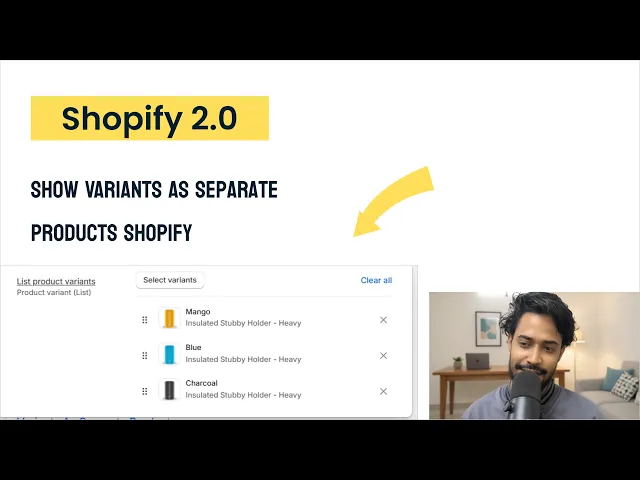
Shopify doesn't display product variants as separate product cards by default. You can achieve this using a Shopify app like Nova Variant Images, editing your theme's Liquid code, or creating separate products manually. Each method has different benefits and limitations depending on how you manage your products and online store.
Why Show Shopify Variants as Separate Products?
This is especially useful for Shopify stores that sell products in multiple colors, patterns, or styles and want to display product variants as individual cards or display color variants as separate products on collection pages without creating duplicate products.
For example, if you sell a T-shirt in black, white, and blue, Shopify stores these as three variants under one product, with Color as the option name and Black, White, and Blue as its values.
By default, customers see one product card on the collection page. They need to open the product page to explore the available colors.
Showing each color variant as a separate product card makes all options visible while browsing the collection, helping customers find the version they want more easily.

Can You Show Shopify Variants as Separate Products Natively?
No. Shopify treats variants as options within a product, rather than independent products.
For example, a T-shirt with Black, White, and Blue variants is still one product in Shopify. Each variant can have its own price, SKU, inventory, and images, but it remains connected to the same parent product.
3 Ways to Show Shopify Variants as Separate Products
There are three common ways to display product variants as individual products:
Method 1 - Use a Shopify app
A variant display app handles the process automatically. Each variant appears as its own product card on collection pages, with its own image, title, and price. This lets customers browse individual product options without editing theme code or creating duplicate products in your catalog.
How It Works with Nova Variant Images
Install Nova variant images from the Shopify App Store and enable the app
Open the Variants on collection page and select a collection
Split by single option (color, size, material) or combine multiple options (color + size + material)
Click on save and view on store.

What You Get with the App Method
Flexible variant splitting: Split by a single option, such as color or size, or combine multiple options, such as color and size, to display each combination separately.
No coding required: Set up variant displays without editing Liquid or theme files. More than 350+ themes supported. You can request your theme support.
Automatic updates: Variant cards update when product information changes.
Consistent product cards: Keep images, titles, and prices aligned with your store's existing design.
Centralized management: Manage variant display without creating duplicate products.
Less maintenance: Avoid maintaining custom code whenever your theme changes.
👉 Bonus: Show only selected variant images: You can also Assign multiple images, videos, and 3D models to each variant and display them in its product page gallery.
Method 2 - Edit your theme code
Editing your theme's code requires working directly with Shopify's Liquid files. The tutorial below walks through the process step by step. You will find the code snippet (free) in video description.
Limitations of Editing Your Theme Code
Technical knowledge required: You need some understanding of Shopify Liquid, HTML, and CSS or vibe code it via claude or chatgpt.
Limited flexibility: Adding more options or changing how variants appear may require further code edits.
Theme design: Custom variant cards may not match your existing collection layout and design.
Filters and sorting: Custom cards may not work correctly with Shopify's built-in collection filters and sorting.
Method 3 - Duplicate the products
Some merchants create a separate Shopify product for each color or style. For example, instead of selling a T-shirt with Black, Red, and Blue color variants, they create three separate products: "T-Shirt Black," "T-Shirt Red," and "T-Shirt Blue."
Pros
Full control: Customize each product's title, description, images, and pricing independently.
Collection visibility: Each product appears as its own card in collection pages.
Independent SEO: Each product can have its own URL, metadata, and product description.
Cons
Inflated product catalog: A store with 100 products and 5 variants each could end up managing 500 separate products.
Inventory management: Stock is tracked separately across duplicate products, making inventory syncing with sales channels and third-party logistics providers more complicated.
Split reviews: Customer reviews are spread across separate product pages instead of building social proof on one product page.
SEO cannibalization: Multiple pages with nearly identical content can compete for the same search queries.
Split analytics: Sales and product performance reports are spread across multiple product entries.
Ongoing maintenance: Every price change, description edit, or image update needs to be repeated across duplicate products.
Worse shopping experience: Customers lose the variant picker. Switching colors or styles may require navigating to another product page.
👉 If you need separate products for different colors or styles, you don't necessarily have to leave them disconnected. A Shopify combined listings app lets you group related products and connect them through swatches or selectors.
FAQ
Can Shopify display each variant as a separate product on collection pages?
Not by default. Shopify displays one product card per product on collection pages, regardless of how many variants it has. Colors, sizes, and other options remain grouped under the same product.
To display variants separately, you can use a Shopify app like Nova variant images, edit your theme's Liquid code, or create separate products for each variant. Each method has different setup requirements and maintenance considerations.
Does displaying Shopify variants separately affect SEO?
It depends on how you implement it.
When using an app like Nova Variant Images or custom theme code, your Shopify catalog remains unchanged. Products and variants stay under the same product, so no additional product pages or URLs are created.
However, manually creating separate products for each variant can lead to duplicate content and keyword cannibalization if those product pages have nearly identical descriptions and metadata.
Can I display Shopify variants separately by color, size, or other product options?
With Nova Variant Images, you can display variants based on a single option, such as color, size, or material. You can also combine multiple options, such as color and size, to display each variant combination separately.
Can I show each color separately on Shopify collection pages while keeping all colors on one product page?
Shopify doesn't provide this layout natively. Nova Variant Images lets you display variants as separate product cards on collection pages while keeping them under the original product. This means you don't need to create duplicate products for each color.
Can I show only specific product variants in Shopify collections?
Shopify's standard collection setup works with products rather than individual variants. This means you cannot natively select individual variants to display in a collection. You'll need an app or custom theme implementation that supports variant-level collection display and selection.