Last updated:
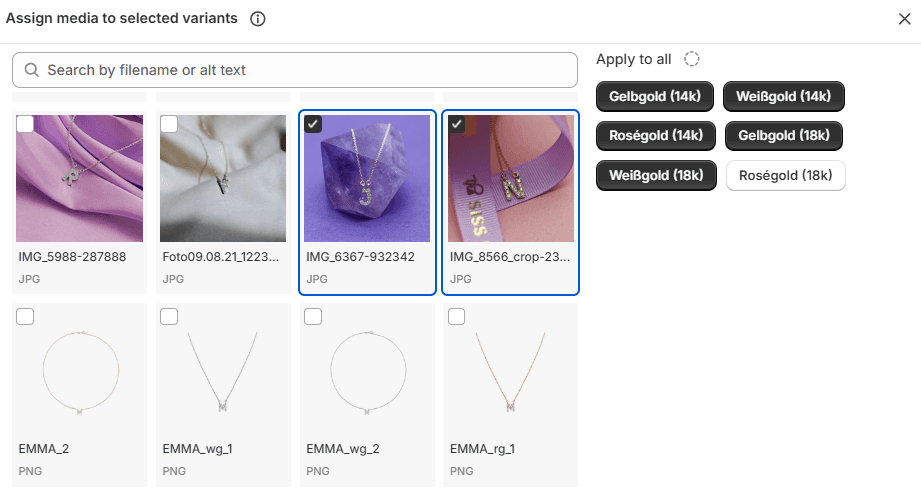
Yes. Shopify lets you assign the same image to multiple variants. If you sell a product where size or material doesn't change the look only color does, you can reuse the same photo across all relevant variants.
How to Assign the Same Image to Multiple Variants in Shopify
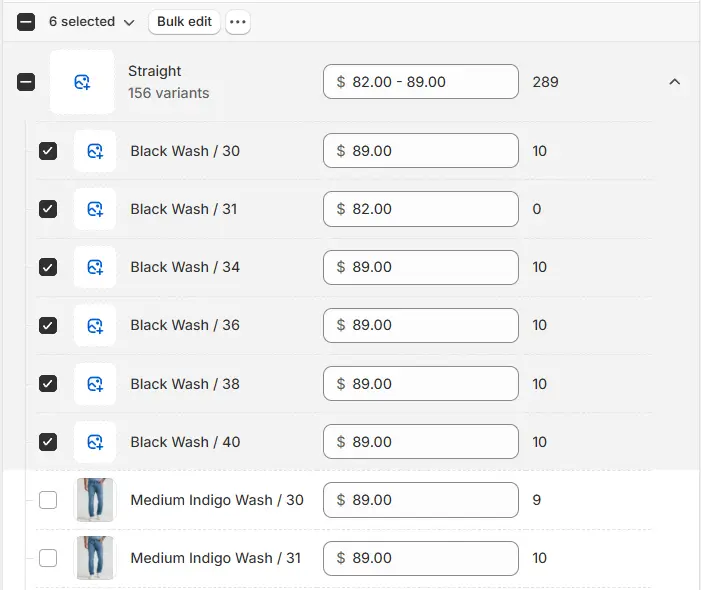
In your Shopify admin, go to Products and open the product. In the Variants section, check the boxes next to the variants you want to update. (ctrl + shift) to select multiple at once.
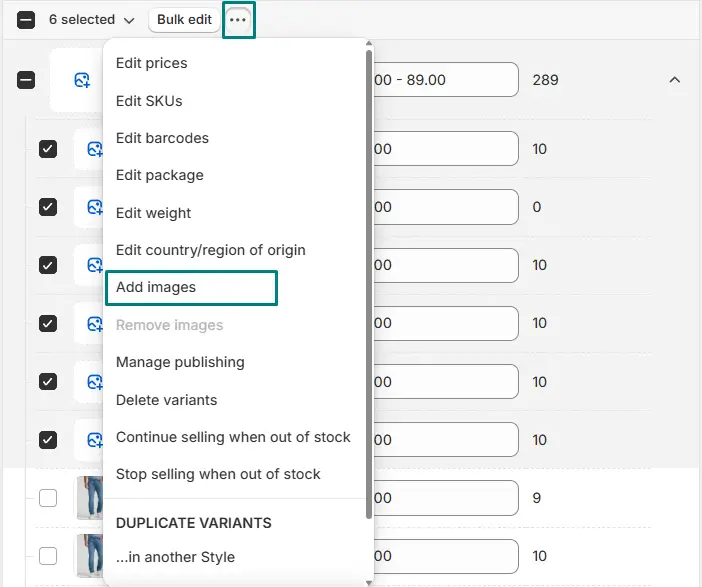
Click the three-dot menu and select Add images if empty otherwise Edit images. Choose the same image for all selected variants and save.
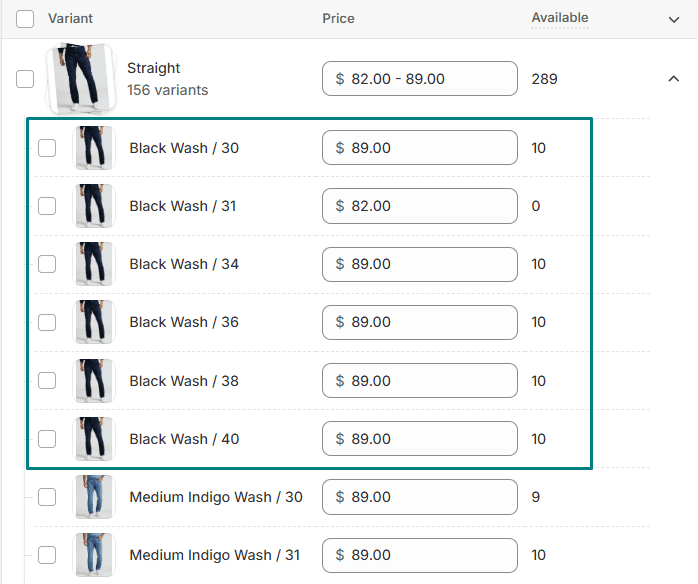
That's it. Every selected variant now points to the same photo.
When You Have a Lot of Variants
Doing this one by one gets tedious fast. Nova Multiple Variant Images has a bulk assign feature that adds the same image or set of images to every variant in one click. Useful for shared images like size charts, packaging shots, or lifestyle photos that apply across all variants.
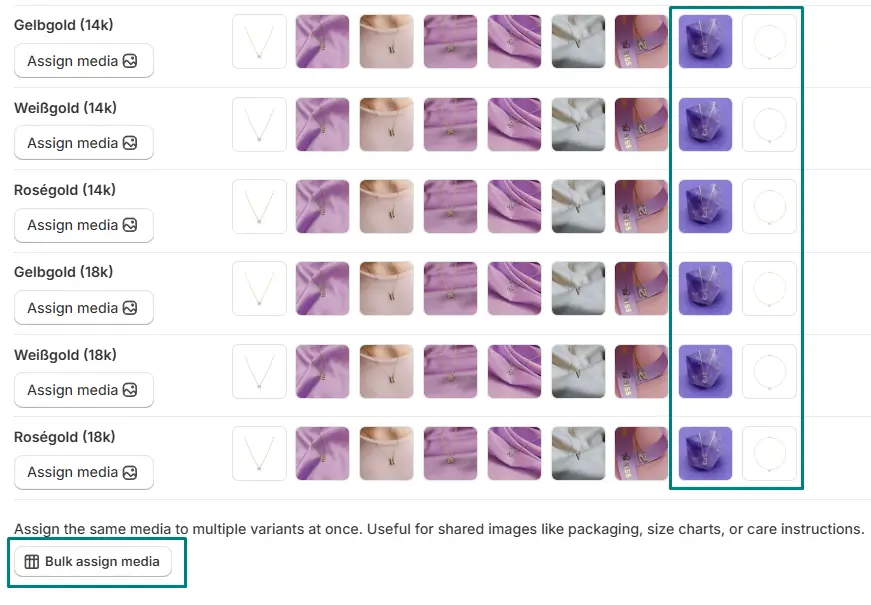
For a full walkthrough of how variant images work in Shopify, see the complete variant images guide.
FAQ
Can two variants have different images in Shopify?
Yes. Assign a different image to each variant in the Variants section of your product editor. Each variant can have its own assigned image natively. For multiple images per variant, you need Nova multiple variant images.
Can I reuse the same image across all variants?
Yes. Select all variants in bulk, click the three-dot menu, and assign the same image to all at once.
What if I want multiple shared images across all variants?
Shopify natively supports one image per variant. For multiple shared images like a size chart plus a lifestyle shot Nova's bulk assign adds multiple images to all variants simultaneously.