Last updated:
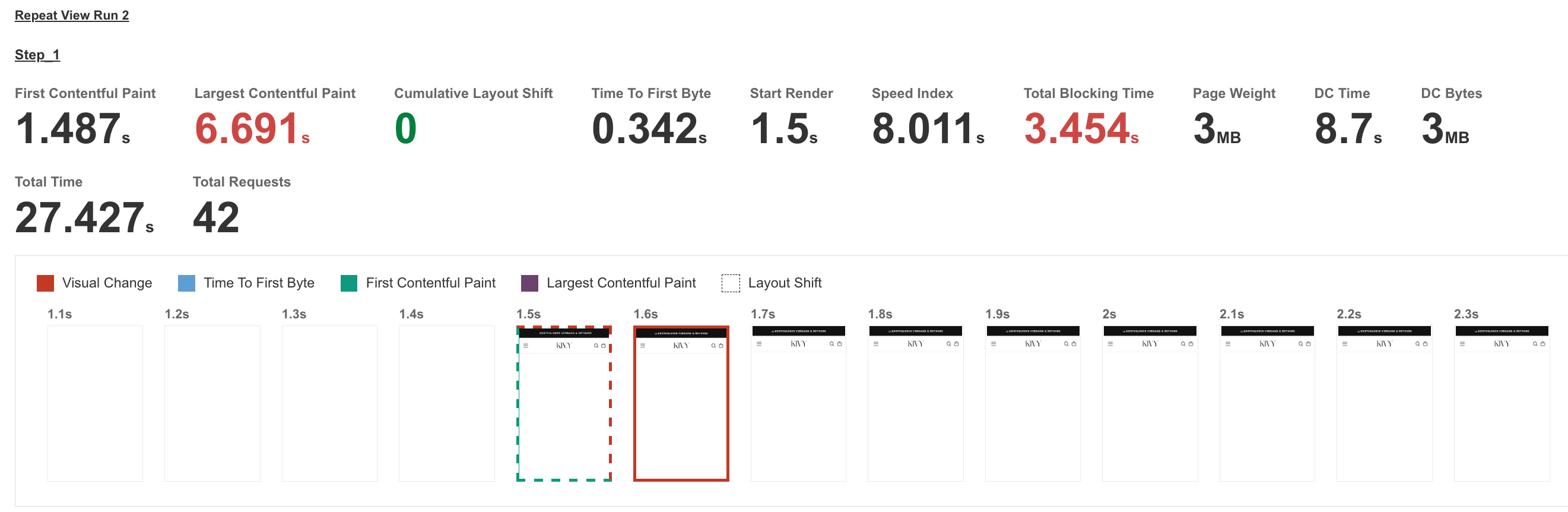
Shopify website speed optimization works best in three steps: measure first, find the cause, then fix only what the data points to. We used this method on KIVY, a German online brand on Shopify. In lab tests, the mobile product page went from an LCP of about 7.5 seconds to about 2 seconds. Read the full KIVY case study.
This guide walks through the same three steps, so you can use them on your own store. You don't need to be a developer to follow along. You do need to know what to ask for, and this guide covers that.
For the official starting point, see Shopify's guide to improving online store performance
Shopify Slow Loading? Measure First, Don't Assume
Most advice on slow Shopify stores jumps straight to a list of fixes: compress the photos, remove apps, change the theme. That is guessing. Every store is slow for its own reasons, and the wrong fix costs time and can break things.
KIVY showed why. The usual suspects were the server, the theme and the apps. The data pointed somewhere else: the server answered in 0.02 seconds, and the time was lost in how the product page loaded its main content.
So the first step is always to measure. It tells you which page, which device and which part of the load to fix, and it gives you a "before" number to prove the fix worked. At KIVY, about 90% of visits were on mobile and mobile product pages made up 71% of all page loads, so that is where we looked first. See how we measured KIVY's store.
You don't need to remove your apps to speed up your store. Four of KIVY's five fixes changed how content loads, not which apps were installed.
Shopify Speed Test: What to Measure First
Before you change anything, measure. Without a baseline, you can't tell which change helped, and you can't prove the result afterwards.
Use two kinds of data. They answer different questions.
Real visitor data (RUM) answers: what do my customers actually experience? RUM stands for Real User Metrics. It is speed collected from real visits, not a simulated test. Shopify shows it in your store's web performance report. Look at mobile, and look by page type: product pages, collections and homepage. Read more: What is CrUX and how to use it (Shopify).
Lab tests answer: why is it slow? You run the test yourself on a slow mobile setup, so you can see where the time goes. Good free tools are Google PageSpeed Insights, WebPageTest and the Performance panel in Chrome.
At KIVY, real visitor data showed mobile product pages at 3.1 seconds. Collection pages were at 1.3 seconds and the homepage at 1.8 seconds. Product pages, the most visited page type, were the only major one outside the good range.
One caution: lab numbers run higher than what real visitors see, because the test is deliberately slow. Use the lab to find causes, and use real visitor data to judge against Google's 2.5-second target.
Before you fix anything, answer two questions.
Which page? Open your real visitor (RUM) report and look at mobile, by page type. Pick the page type that is both slow and heavily visited.
Which metric? Look for the one that's in the red. At KIVY it was LCP: 3.1 - 3.8 seconds on mobile product pages, against Google's 2.5-second target.


Beware of Fake Shopify Speed Scores
Measure first, but don't trust a score alone. Shopify's performance team found almost 15% of one-click speed apps they reviewed were gaming the numbers . "Don't get scammed by fake performance experts and apps". A script spots the speed test and holds back content, so the score improves while real visitors see the same slow store. That's why we pair lab tests with RUM, which shows what real visitors actually experience.
Find What's Slowing Down Your Shopify Store
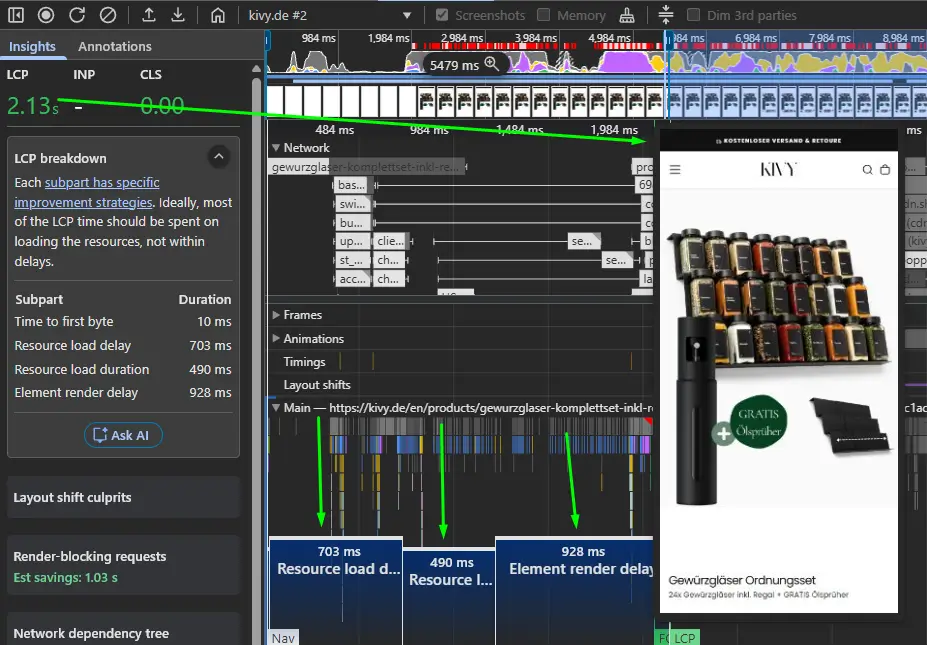
Once you know which page is slow and which metric is in the red, the next step is to find out why. A slow page is rarely one problem. In our experience, LCP is the problem most of the time. It's the time it takes for the biggest piece of content on screen to show up, and when it's slow, the whole page feels slow. So don't guess. Break the LCP into its parts and see where the delay actually sits.
LCP part | What it means | Common causes |
|---|---|---|
Server response | The wait for the first byte from your server | Slow hosting, redirects |
Wait before download starts | The browser finds the main content late | Content added late by a script or app, low priority, lazy-loading set on the wrong thing |
Download time | How long the main content takes to download | Large files, too many items marked high priority, videos or thumbnails downloading at the same time |
Wait before it shows | Downloaded, but not yet on screen | A slider or gallery waiting for its script, code that blocks the page from showing (an animation shimmer) |
Each part has a different fix. Compressing images does nothing if the real delay is the browser finding the image too late. Source: web.dev, Optimize LCP.
How to Improve Shopify Site Speed
Fix one thing at a time and test after each change. Make the changes on a copy of your theme, so your live store stays safe.
1. Give the main content priority
Tell the browser which content matters most, so it loads first. Only that one item should be high priority. If every slide is marked as urgent, they all compete with each other and the main content loads slower.
2. Show the first content right away
Don't let a gallery or slider hide the first slide while a script loads. The first slide should show without waiting.
3. Load below-the-fold media later
Thumbnails, videos and images further down the page should load only when the visitor scrolls near them. Serve them at the size they actually appear.
4. Load scripts later
Delay JavaScript that isn't needed to show the page. Load it after the page has started showing.
5. Check your apps
You don't have to remove apps to speed up your store. Start by asking your developer when each app loads its code, and whether it loads before your main content.
6. Test after every change
Use the same settings each time. In WebPageTest, run three tests and use the median, turn on video capture, and label each run "before" or "after." Then compare them side by side in Test History.
At KIVY, fixes like these took mobile LCP from about 7.5 seconds to about 2 seconds in lab tests.
What Changed at KIVY: How to Speed Up a Shopify Store
In lab tests, mobile LCP dropped from about 7.5 seconds to about 2 seconds, roughly 73% faster. The changes went live four days after the baseline audit.
What we measured (lab) | Before | After |
|---|---|---|
LCP (average) | about 7.5 s | about 2 s |
Wait before the main content starts downloading | 3.2 s | 0.66 s |
Download time | about 3.8 s | 0.44 s |
Wait before it shows on screen | 2 to 5 s | 0.12 s |
Once your improvements are live, check your real visitor (RUM) report again after 30 days. That's how long it takes to collect enough data to see the real effect. If the numbers aren't where you want them, repeat the process
Want This Done for Your Store?
If your Shopify store is slow on mobile, we can run the same three steps for you; measure first, find the cause, fix it. Get an audit for free.